Safe Browsing and Wi-Fi
Simply Safe Is Still Safe
Most online problems arise from haste. Most protection comes from brief, calm verification.
For Safe Browsing and Wi-Fi, the practical route is simple: choose small measures you can set up today and sustain.
The goal is not perfection, but predictably safe behavior that holds up even on busy days.
Immediate measures (15 minutes)
Why this matters
The core of Safe Browsing and Wi-Fi is risk reduction in practice. Technical context supports the choice of measures, but implementation and assurance are central.
A cup of coffee, free Wi-Fi, and all your passwords gone
In 2014, journalist Maurits Martijn from De Correspondent brought a hacker along to a busy cafe in Amsterdam. The hacker -- a friendly thirty-something with a small laptop -- needed exactly three minutes to see which phones were in the cafe, which websites everyone was visiting, and which passwords were flying around. Name, email address, password from a dating app: everything lay open like a book on a reading table. The owners of those phones had no idea. They sipped their lattes, scrolled through Instagram, and had no clue that a complete stranger was watching along.
The creepy part? The hacker didn't use any secret spy equipment. Everything he needed cost less than a hundred euros and fit in a coat pocket. The trick was simple: he set up a Wi-Fi network called "Free Cafe WiFi," and everyone happily connected to it. Why not? It was free. It worked. And it was a trap.
This chapter is about how to safely use the internet -- at home and on the go. No panic, no technical manuals, just clear advice you can apply today.
Your router is the front door of your digital home
Imagine: you buy a house and the real estate agent says at the key handover: "Oh yes, the lock on the front door is the same lock that's in three hundred other houses on this street. And the code is on a sticker on the outside." You'd replace that lock immediately, right?
Well, that's exactly the situation with your router. That box from your internet provider blinking away behind the couch somewhere -- that's the front door of your entire digital life. And the password? It's literally on a sticker on the bottom. The same type of password as thousands of other customers.
Why that's a problem
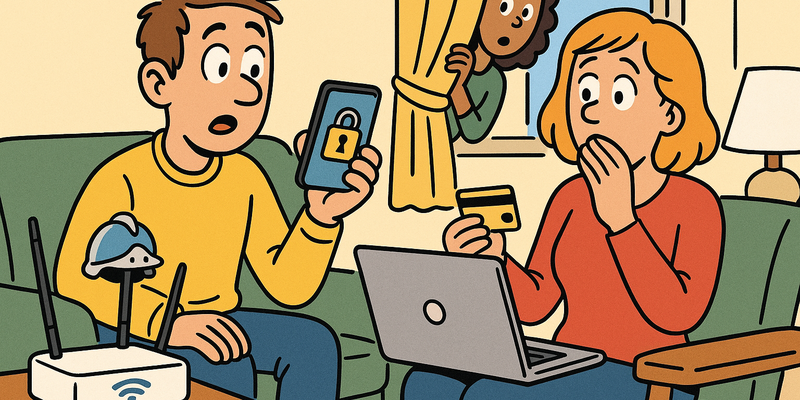
Anyone who comes near your house -- the neighbor, the delivery driver standing in the hallway, the babysitter -- can read that sticker. And with that password, they can:
- View all your internet traffic
- Use your Wi-Fi (and you're responsible for what they do with it)
- Change your router's settings
- Access devices on your network
Step by step: securing your router
- Turn the router over and find the default password on the sticker. Write it down -- you'll need it shortly.
- Open your browser and type your router's address in the address bar. Usually that's 192.168.1.1 or 192.168.0.1 (it's also on that sticker).
- Log in with the default password.
- Find the admin password setting (often under "Administration" or "System").
- Choose a new, strong password. Use the passphrase method from chapter 2: three or four random words strung together, for example "CoffeeImageStairsSkate."
- Write this password down and store it in a safe place (not on a sticker on the router).
Tip: The admin password of your router is different from your Wi-Fi password. The admin password gives access to all settings. The Wi-Fi password is what you use to connect. Change them both.
Wi-Fi encryption: the invisible wall around your network
Your Wi-Fi signal reaches far beyond your walls. Your neighbors, passersby, and that one suspicious delivery van that's been parked on the street for three days -- they can all pick up your signal. Encryption ensures they can't do anything with it.
Which encryption should you choose?
| Type | Security | Explanation |
|---|---|---|
| WPA3 | Excellent | The newest standard. Choose this if your router supports it. |
| WPA2 | Good | The previous standard. Still perfectly fine if you use a strong password. |
| WPA | Insufficient | Outdated. Don't use it anymore. |
| WEP | Worthless | Can be cracked in minutes. Seriously, don't use it. |
| No encryption | Disastrous | Anyone can read along. Never do this. |
Tip: Not sure which encryption your router uses? On your phone, you can tap on your network name in the Wi-Fi settings -- it usually shows which type of security is active.
Improving your Wi-Fi password
- Log in to your router (see above).
- Find the Wi-Fi settings (often under "Wireless" or "Wi-Fi").
- Set the encryption to WPA3 if possible, otherwise WPA2.
- Choose a strong Wi-Fi password -- another passphrase: "PenguinDancesToMusic" is excellent.
- Save the settings. All your devices will need to reconnect with the new password.
A guest network: the smart separation
You've probably had visitors who asked: "Do you have Wi-Fi?" And then you give them your password, and they have access to your entire network. Including your network drive, your printer, and theoretically your computer too.
The solution is surprisingly simple: a guest network. Almost every modern router can do this. It's a separate Wi-Fi network with its own name and password, completely separated from your main network.
What do you use the guest network for?
- Visitors. Give them the guest password instead of your main password.
- Smart devices. Your robot vacuum, smart light, baby monitor, and all other devices that don't necessarily need access to your computer -- put them on the guest network.
Setting up a guest network
- Log in to your router.
- Find "Guest Network" in the settings.
- Enable it.
- Give it a recognizable name, such as "Smith-Family-Guest."
- Set a separate password.
- Make sure the "Access to local network" option is disabled.
Tip: Change the guest password occasionally. After a party, for example. Then you don't have to figure out who still has it.
DNS: the phone book of the internet
Every time you visit a website, your computer asks a DNS server: "Hi, what is the address of nos.nl?" That DNS server is like a phone book -- it translates names into addresses that computers understand.
By default, your computer uses the DNS server of your internet provider. That works fine, but there are two reasons to switch:
- Privacy. Your provider can see exactly which websites you visit.
- Security. Some DNS servers automatically block known dangerous websites.
Better DNS options
| Provider | What it does | Address |
|---|---|---|
| Quad9 | Blocks malware and phishing sites | 9.9.9.9 |
| Cloudflare Family | Blocks malware and unwanted content | 1.1.1.3 |
| Cloudflare | Fast DNS, no filtering | 1.1.1.1 |
How do you set this up?
The easiest way is to change it in your router -- then it applies to all your devices:
- Log in to your router.
- Find the DNS settings (often under "Internet" or "WAN").
- Enter 9.9.9.9 as the primary DNS and 149.112.112.112 as the secondary.
- Save.
Tip: Quad9 is a nonprofit organization that collaborates with security companies worldwide. They block millions of attempts every day to lure people to dangerous websites. And it's free.
Public Wi-Fi: free is never truly free
Back to that cafe in Amsterdam. The problem with public Wi-Fi is fundamental: you don't know who controls the network. That "Schiphol Free WiFi" might really be from Schiphol, but it could also be a small laptop in someone's backpack.
What can go wrong?
- Eavesdropping. On an unsecured network, someone can intercept your traffic -- which sites you visit, what you type.
- Fake networks. Someone creates a network with a trusted name, and your phone automatically connects to it.
- Redirecting. You think you're going to your bank, but you're redirected to a fake version.
Practical rules of thumb for public Wi-Fi
- Don't do banking on public Wi-Fi. Wait until you're home or use your mobile data.
- Forget networks after use. Go to your Wi-Fi settings and remove public networks you no longer need.
- Turn off Wi-Fi when you're not actively using it. Otherwise, your phone continuously searches for known networks, and that can be exploited.
- Prefer your mobile data. 4G/5G is encrypted by default and much safer than public Wi-Fi.
- Watch for HTTPS. Make sure you always see the lock icon in the address bar (more on that shortly).
VPN: what it does and doesn't do
VPN ads are everywhere. If you believe them, without a VPN you're a defenseless prey for hackers, governments, and your own internet provider. The reality is more nuanced.
What a VPN does
A VPN (Virtual Private Network) creates an encrypted tunnel between your device and a server somewhere else. This means:
- On public Wi-Fi, nobody can read your traffic (that's genuinely useful).
- Your internet provider can't see which websites you visit.
- Websites see the IP address of the VPN server instead of yours.
What a VPN doesn't do
- It doesn't make you anonymous. You're still logged in to Google, Facebook, and everything you have an account with. They still know it's you.
- It doesn't protect against viruses or phishing. A dangerous link is just as dangerous with a VPN.
- It's not a magic shield. If you enter your password on a fake website, a VPN won't help you.
- "Military-grade encryption" is marketing talk. All serious VPN services use the same standard encryption.
When is a VPN useful?
| Situation | VPN useful? |
|---|---|
| You regularly use public Wi-Fi | Yes, definitely |
| You want your provider not to snoop | Yes |
| You think it protects you against hackers | Not really |
| You want to be anonymous | Hardly -- there are better methods |
| You want to watch foreign streaming | Yes, but that's not a security reason |
Tip: If you want a VPN, choose a paid service from a reputable company. Free VPN services make money from your data. You're then shifting trust from your provider to an unknown company -- that's not an improvement.
HTTPS and the lock icon: your digital envelope
In the past, internet traffic was sent like a postcard -- everyone along the way could read it. Nowadays, most websites use HTTPS, which encrypts your traffic. It's like putting your postcard in a sealed envelope.
What to look for
- The lock icon in your browser's address bar. That means the connection is encrypted.
- "https://" at the beginning of the address. The "s" stands for "secure."
Common misconceptions
- A lock icon doesn't mean the website is trustworthy. It only means the connection is encrypted. A scammer can have a lock icon too.
- No lock icon? Never enter personal information. No passwords, no credit card numbers, nothing.
- Browser warnings are serious. If your browser says "this connection is not secure" -- don't proceed. Your browser doesn't do that for fun.
Smart home: when your fridge is on the internet
We're putting internet in everything. Fridges, doorbells, baby monitors, lights, thermostats, vacuum cleaners, and even cat flaps. The Internet of Things (IoT) is convenient, but it has a big problem: security is often abysmal.
Why are smart devices vulnerable?
- Cheaply made. Manufacturers cut corners on security to keep the price low.
- Rarely updated. When was the last time you updated your smart light bulb? Exactly.
- Default passwords. Many devices have passwords like "admin" or "1234" that never get changed.
- Always on. They're connected to the internet 24 hours a day -- and therefore reachable 24 hours a day.
Securing your smart devices
- Change the default password of every smart device. Yes, even that 12-euro smart plug.
- Put them on the guest network. This way they're separated from your computer and phone.
- Update them. Check occasionally whether updates are available. Enable automatic updating if possible.
- Disable what you don't need. Does your washing machine really need an internet connection? Probably not.
- Buy from known brands. They at least update their products for a few more years.
- Think before you buy. Does that device have a camera or microphone? Is that necessary? What happens with the data?
Tip: There are known cases of baby monitors where strangers could watch and talk through them. Not to scare you, but to emphasize: always change the default password.
Summary: the five golden rules
| Rule | What you do |
|---|---|
| 1. Secure your router | Change the default password and enable WPA2 or WPA3 |
| 2. Use a guest network | For visitors and smart devices |
| 3. Be careful with public Wi-Fi | Don't do banking, use mobile data |
| 4. Use better DNS | Set up Quad9 or Cloudflare on your router |
| 5. Update everything | Your router, your devices, your browser -- everything |
Do this today
Grab your phone or laptop and go through these points. It will take you half an hour and your network will be much safer afterward.
Remember: Perfect isn't necessary. Every checkbox you tick makes you a bit safer. And a bit safer is already much better than most people.
Further reading in the knowledge base
These articles in the portal provide more background and practical context:
- Passwords -- a brief history of collective failure
- Recognizing phishing
- Two-step verification -- locking the door and bolting it shut
- VPN -- a tunnel through the wild internet
- The Dark Web -- what it is and why it matters
You need an account to access the knowledge base. Log in or register.
Related security measures
These articles provide additional context and depth: